
📺 Roku Setup Guide
Follow the steps below to find and install STREAMZ on your Roku device or Roku TV.
⚠️ Roku Is Different From Fire TV / Android
Roku devices do not install Android APK files and do not use Downloader. Install STREAMZ directly through the Roku search/app system using the steps below.
⭐ Install STREAMZ on Roku
Go to the Roku Home Screen
Turn on your Roku device and press the Home button on your Roku remote.
Select Search
From the left-side Roku menu, highlight Search.
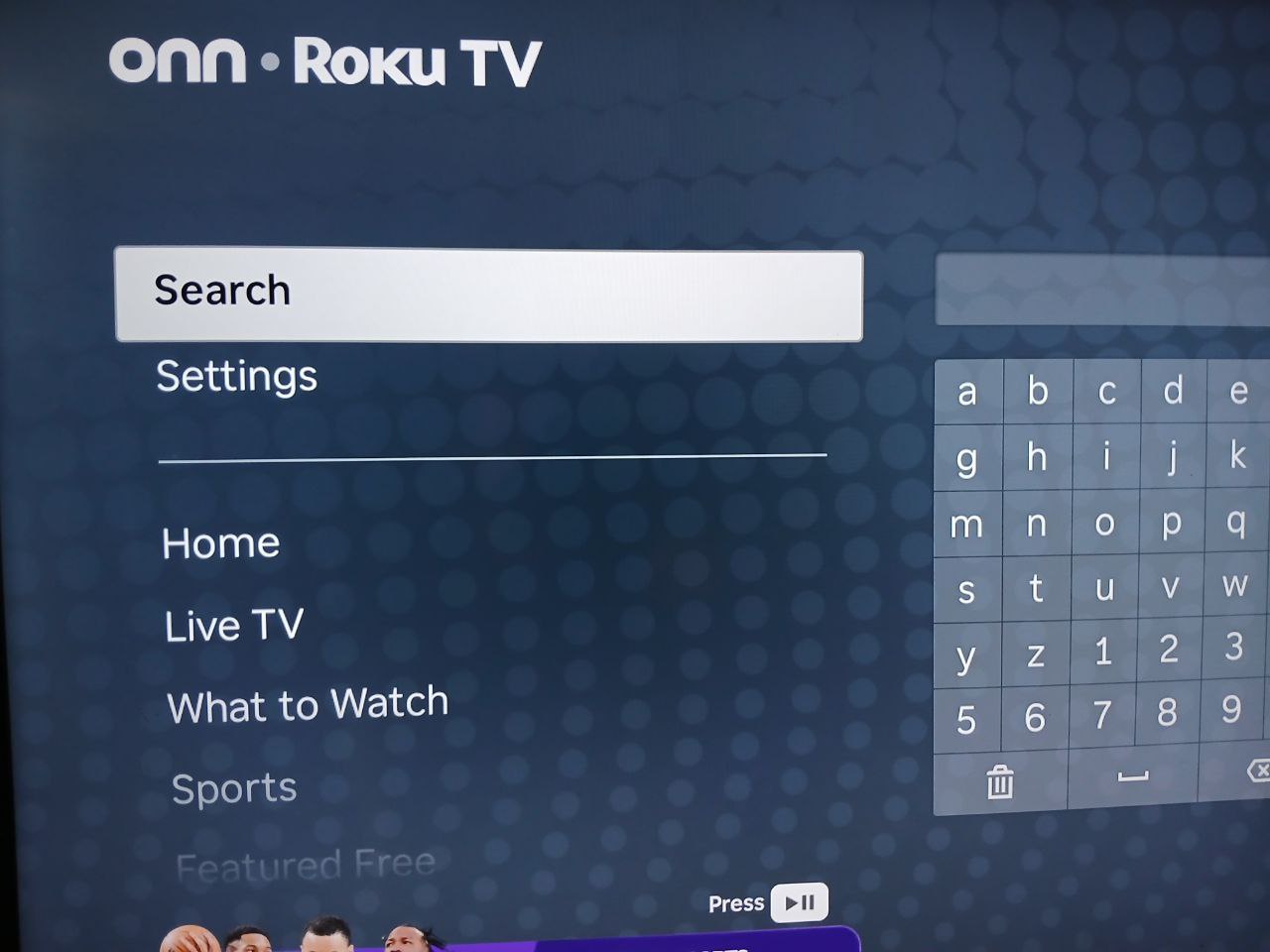
Search for STREAMZ
Using the on-screen keyboard, type: STREAMZ
Select the STREAMZ App
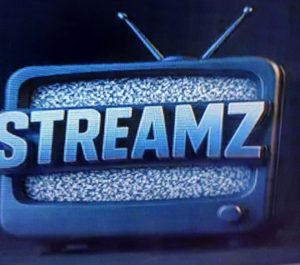
When STREAMZ appears in the results, highlight the app with the television-style STREAMZ logo shown below.
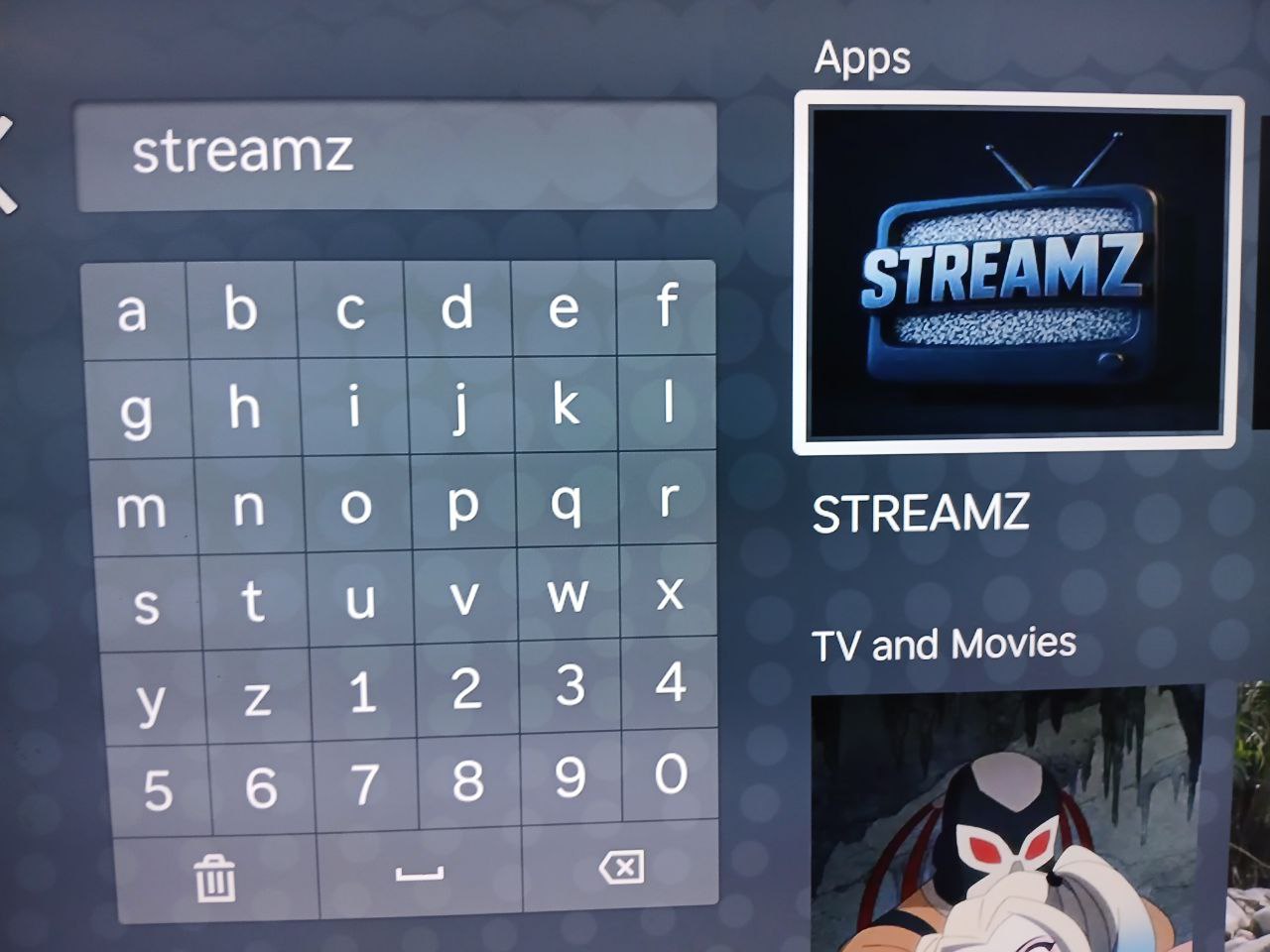
Add / Install STREAMZ
Open the STREAMZ listing and choose Add App, Add Channel, or the install option shown on your Roku.
Open STREAMZ
After installation completes, choose Open App or return to the Roku Home screen and launch STREAMZ from your installed apps.
Complete the On-Screen Setup
Follow the instructions displayed inside STREAMZ. If the app asks for login or activation information, use the details provided to you by Elite Media Support.
✅ Already Installed?
If STREAMZ is already on your Roku, you do not need to install it again. Open it from the Roku Home screen and continue with the login or activation instructions provided for your account.
🎥 Roku Video Tutorial
You can also follow the video tutorial below.
🛠️ Can’t Find STREAMZ?
Try these steps before contacting support:
✔ Make sure your Roku is connected to the internet.
✔ Confirm that you typed STREAMZ correctly.
✔ Restart your Roku and search again.
✔ Go to Settings → System → Software Update → Check Now and install any available Roku update.
✔ App availability can vary by Roku model, Roku account and region.
If STREAMZ still does not appear, contact Elite Media Support and tell us which Roku model or Roku TV you are using.
🔄 STREAMZ Installed But Not Opening?
Restart Your Roku
Go to Settings → System → Power → System Restart if that option is available, or restart your Roku device.
Check for Updates
Go to Settings → System → Software Update → Check Now.
Remove & Reinstall
If necessary, remove STREAMZ from Roku and then search for it again and reinstall it.
Contact Support
If the app still will not open, tell Elite Media Support your Roku model and exactly what happens when you launch STREAMZ.
✅ Roku Setup Complete!
Once STREAMZ is installed and your account setup is complete, open the app from your Roku Home screen.
💬 Need Help?
Contact Elite Media Support and tell us:
Your Roku model • Whether STREAMZ appears in search • Whether it installs • What happens when you open it
Roku menus and wording can vary slightly by device and Roku OS version.